
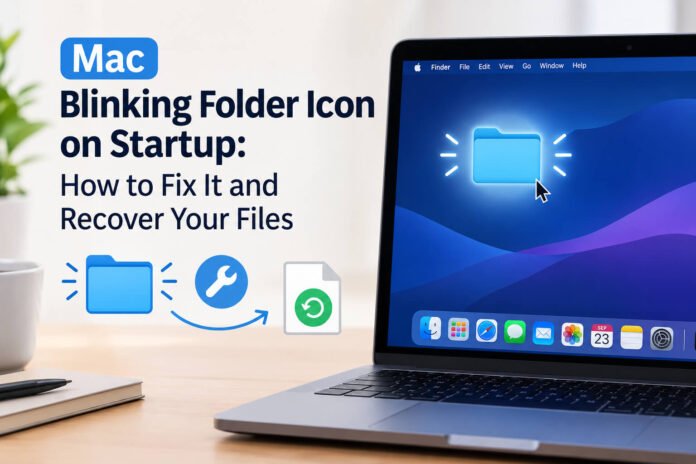
Are you getting a blinking folder icon on Mac during startup? This situation can be alarming, but don’t worry – we’ll help you fix it. The blinking folder icon generally means that your Mac is unable to find a valid startup disk or operating system to boot from. There are several reasons like unavailable startup disk, damaged macOS, or any file-system problem on the disk, etc. behind this problem.
However, sometimes you may even encounter data loss issues when the blinking folder icon appears on your Mac. If the storage drive is still accessible and you’re unable to find any file or folder, there may have been data loss. In such cases, it’s important to immediately proceed with adequate free Mac data recovery software or DIY solutions to restore your files.
This guide explains why the blinking icon appears on Mac and how to fix it. Also, we’ll explore how to recover deleted files from Mac that won’t start normally. Let’s get started!
What is Blinking Folder Icon on Mac?
The blinking folder icon with a question mark indicates that your Mac is unable to find its startup disk, which in result, causes problem while starting the computer. Normally, your Mac searches for a valid startup volume during boot. If it cannot find one, it displays the folder icon with a question mark.
Before you proceed with adequate fixes, try finding the exact causes of this problem. Some main reasons include:
- The startup disk is not selected correctly and experiences problems
- macOS installation is damaged or unavailable
- The internal SSD or hard drive has file-system problems.
- The internal storage is failing or has hardware problems.
- External storage interferes with the startup process.
- macOS is unable to access the internal storage.
The icon itself does not automatically mean that your personal files have been deleted. However, in a few cases, you may encounter data loss on the internal drive.
What to Do Before Fixing the Mac Blinking Folder Icon Issue?
If important files are stored on your Mac, it’s important to consider certain precautionary measures to ensure smooth and hassle-free repair. Before proceeding:
- Disconnect unnecessary external devices.
- Do not erase or format the internal drive.
- Avoid reinstalling macOS until important data has been recovered.
- Do not repeatedly restart a Mac that may have a failing drive.
- If possible, connect the Mac to reliable power.
- Keep an external drive available to save the recovered files.
If the internal storage is making unusual sounds, disappearing from Disk Utility, or showing signs of hardware failure, data recovery may be more appropriate.
How do I Fix Mac Show a Blinking Folder Icon on Startup?
Now it’s time to fix the blinking folder icon issue on your Mac. Just go through the below workarounds one by one to resolve the problem:
Method 01: Check and Select the Startup Disk
Before you proceed with advanced workarounds, it’s important to check whether your Mac can identify a valid startup disk. If you’re using a Mac with Apple silicon, shut it down and then press and hold the power button until the startup options appear.
For Intel-based Mac users, restart the computer while holding the Option (⌥) key. When the startup volume appears on your screen, select it and continue startup.
If your Mac has now successfully started, try creating back up of your important files to another storage device. If no usable startup disk appears, then you can use third-party Mac data recovery software to recover your important lost files.
Method 02: Check the Startup Drive in Disk Utility
macOS built-in Disk Utility can help determine whether the internal storage is detected and whether it contains a recognisable volume. To perform macOS recovery, you have to:
- Launch Disk Utility, go to View > Show All Devices (if available).
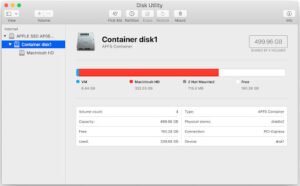
- Look for the internal physical drive and its volumes.
- Wait till the expected startup volume appears on the screen.
- Choose the relevant volume and tap First Aid.
- Go through the on-screen instructions and wait till the process completes.
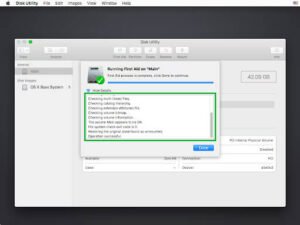
First Aid can identify and repair certain file-system problems. However, if the disk contains valuable files and you suspect physical drive failure, consider recovering the data before performing repair operations.
Recover Data from Mac Using Free Mac Data Recovery Software
If your Mac cannot boot normally but its internal storage is still readable, it’s important to immediately proceed with adequate recovery workarounds. The exact process depends on your Mac model, processor architecture, macOS version, and storage configuration. However, if you are looking for the simplest option to restore deleted files, go with free Mac data recovery software.
Tools like Stellar Data Recovery Free for Mac are especially designed to recover your lost files from Mac by performing thorough scanning. You can use this tool to recover deleted files of various types, including photos, videos, documents, and many more. Whether your files are deleted accidentally or lost due to system error, virus attack (though rare on Macs), or any storage device-related issue, this professional free Mac data recovery software can help you in every scenario.
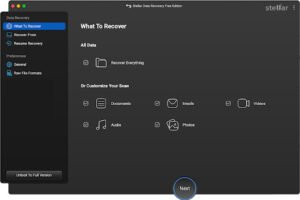
The Stellar Data Recovery Free for Mac tool can help you recover files deleted from SD cards, hard drives, or any other internal or external storage media. It also allows you to preview the recoverable files before saving them on your device. The most important rule is to avoid saving recovered files to the source drive.
How to Avoid the Mac Blinking Folder Issue in the Future?
While the aforementioned fixes can help you resolve the blinking folder icon issue on your Mac, it’s time to take certain precautions to avoid such issues in the future. For this:
Perform Backups Regularly
Performing backups with the help of Time Machine or any other tool will ensure copies of all important files. Try to save the backup copy of your important files in a separate location from the Mac so that unexpected failures don’t affect it.
Update macOS Regularly
Installing compatible macOS updates can provide system improvements and security fixes. Before major upgrades, make sure important data is backed up.
Ensure Free Space on Hard Drive
Lack storage space on the hard drive may lead to performance and system management problems. Always clear unnecessary files and store large file archives on separate drives.
Do Not Interrupt Major System Operations
Do not unnecessarily shut down the Mac while macOS is installing updates or performing important system operations.
Wrapping Up
When you see a blinking folder icon on your Mac at startup time, the issue normally suggests that the Mac cannot find the startup disk and/or a properly functioning OS. Although this problem may impact normal startup on your Mac, it doesn’t necessarily mean that data is lost from your device. Start by checking whether the startup disk is available and use macOS Recovery and Disk Utility to determine whether the internal storage is recognised. If the drive is accessible, prioritise copying or recovering important files before performing major repairs.
In case the startup disk is not detected, specialised free Mac data recovery software may help to get your files back. Always save recovered files to a different storage device rather than the original drive. Most importantly, do not erase or format the internal drive before recovering important data.